
Planning & Strategy
Venn Diagram Template
By RP Hobbyist · Updated
A Venn diagram compares sets by showing what each has on its own and what they have in common. It is named after the English logician John Venn, who introduced it in 1880. Two overlapping circles are the classic form: the outer parts hold what is unique to each item, and the overlap holds what they share.
This template turns the diagram into an editable map with three branches: Set A, Set B and their Intersection. Listing items as nodes, instead of squeezing text into overlapping circles, leaves room for as many points as you need and keeps the comparison readable when you export it.
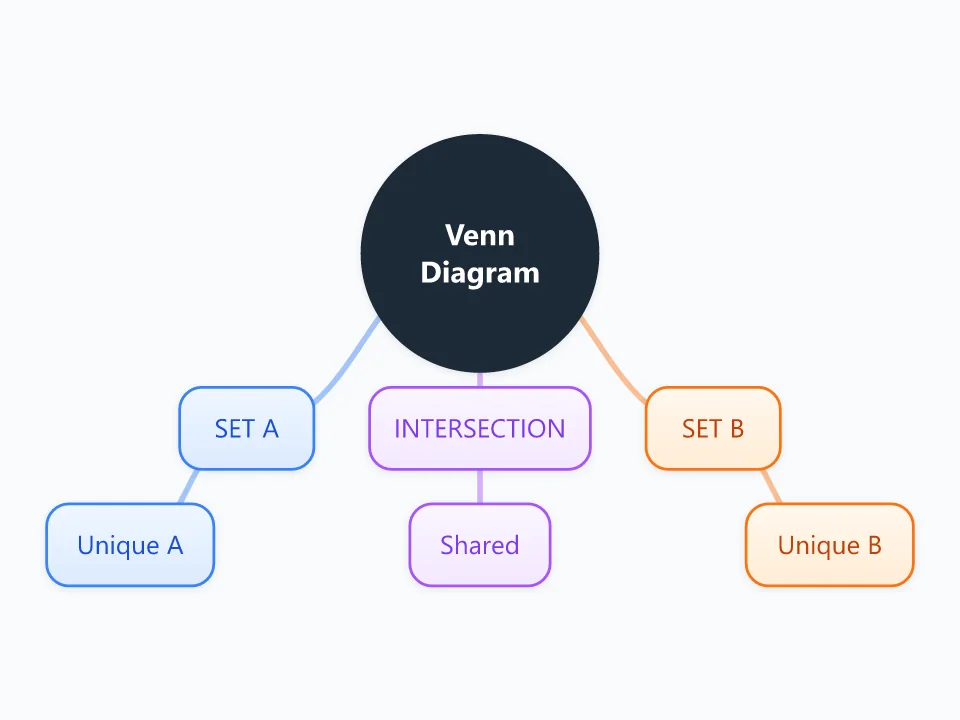
It opens as a new map with 7 topics already filled in. You don't need an account.
Open in the editorWhen to use a Venn Diagram
- Comparing two products, tools, ideas or candidates
- Compare-and-contrast exercises in school and study notes
- Finding common ground between two teams, audiences or proposals
- Checking where two customer segments overlap
What goes in each branch
- Set A
- Everything that is true of the first item but not the second. Rename the branch to the item's name.
- Set B
- Everything that is true of the second item but not the first.
- Intersection
- Characteristics both items share. This is often the most useful branch for finding common ground.
Example: Comparing working from home with working in an office
- Home only: no commute, flexible hours, fewer interruptions
- Office only: face-to-face collaboration, a clear separation from home life
- Shared: the same tasks, deadlines and team goals
Tips
- Compare items at the same level, for example two tools rather than a tool and a company.
- Check each point: if it applies to both items, move it to the Intersection.
- For three items, add a Set C branch and a branch for each pair's overlap.
- Finish with a conclusion node that says what the comparison means for your decision.
Using this template in Neuron Mapping
- Click Open in the editor. The template opens as a new map.
- Select a topic and press Tab to add a branch under it, or double-click a topic to change its text.
- Select a topic to change its color and shape, or add notes to it in Markdown.
- When you're done, export the map as a PDF or PNG, or save it to keep editing later.
Everything runs locally in your browser: your map is saved on your device, works offline, and can be exported as PDF, PNG or an editable .nmm file.