
Project Management
Kanban Board Template
By RP Hobbyist · Updated
Kanban is a visual method for managing work as it moves through stages. It grew out of the Toyota Production System and was adapted for knowledge work by David J. Anderson. Every task is a card, every stage is a column, and cards move from left to right as work progresses, so anyone can see at a glance what is waiting, what is being worked on and what is finished.
This template gives you the three classic columns, To Do, In Progress and Done, as branches with example tasks under each. Rename the columns to match your own workflow, add a Review or Blocked stage if you need one, and move task nodes between branches as their status changes.
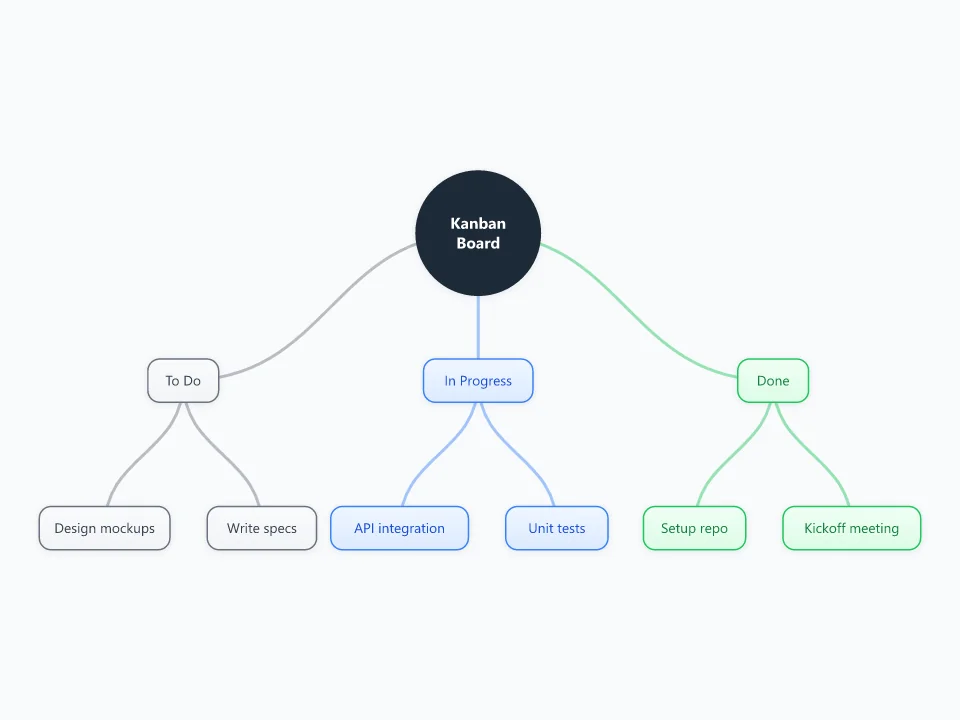
It opens as a new map with 10 topics already filled in. You don't need an account.
Open in the editorWhen to use a Kanban Board
- Managing a personal or team to-do list visually
- Running a software, content or design workflow with continuous delivery
- Spotting bottlenecks where work piles up
- Keeping stakeholders informed without status meetings
What goes in each branch
- To Do
- Work that is ready to start, ordered with the most important item first. Keep it short enough that everything in it is still relevant.
- In Progress
- Tasks someone is actively working on. Limit how many items can sit here at once (a WIP limit) so work gets finished instead of just started.
- Done
- Completed tasks. Keeping them visible for a while shows progress and helps in reviews and retrospectives.
Example: A small team launching a website
- To Do: write the About page, choose a hosting plan, prepare the launch email
- In Progress: build the contact form (Priya); edit product photos (Sam)
- Done: domain registered, style guide agreed
- WIP limit: no more than two items per person in progress
Tips
- Set a work-in-progress limit for each column and respect it; it is the core of kanban.
- Add a Blocked or Waiting branch so stuck work is visible instead of hiding in In Progress.
- Put an owner and a due date as child nodes under each task.
- Review the board regularly and clear out old Done items so the map stays readable.
Using this template in Neuron Mapping
- Click Open in the editor. The template opens as a new map.
- Select a topic and press Tab to add a branch under it, or double-click a topic to change its text.
- Select a topic to change its color and shape, or add notes to it in Markdown.
- When you're done, export the map as a PDF or PNG, or save it to keep editing later.
Everything runs locally in your browser: your map is saved on your device, works offline, and can be exported as PDF, PNG or an editable .nmm file.